Português
 Español
Arduino Lesson 7 – Controlling LED via Serial Monitor

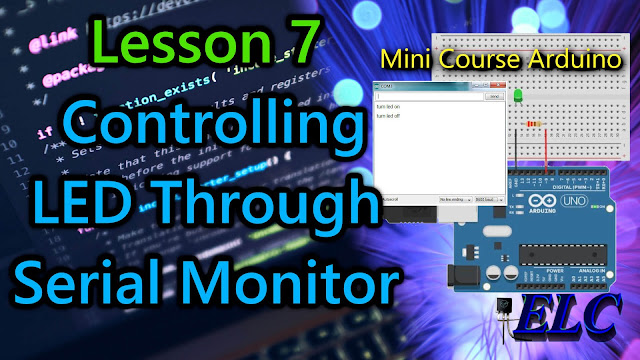
Arduino: Lesson 7 – Controlling LED Through Serial Monitor with Arduino
Welcome to Lesson 7 – Basic Arduino Course
In today’s lesson, we will learn how to control the state of a LED via the Serial Monitor using the Arduino IDE.
We will use the Serial.readString() function which will cause the Arduino to interpret the sentence you have entered into the serial monitor, e.g. “Turn on the led“. If you press ENTER Key in your computer, the LED will be turned on, if you want to turn off the LED just write the message “Turn off the LED“.
With this method we can use it in different projects such as:
- Load activation – Turns one or more loads on or off using commands.
- Motor Speed Control – Use Serial Monitor to send the speed at which a PWM motor should run.
- Calibrate a sensor’s constant – We can create software to change a sensor’s constant to a specified value if needed.
In our example today, we are using the serial monitor to trigger a LED, but you can also use a relay module to drive a motor, for example.
To do this, we will use the D9 digital port on Arduino. We can use any digital port we want. Just change the port you want to use in the declaration or the one that is available on your Arduino.
Required hardware
- Arduino board
- LED – Light Emitter Diode 220 Ohm Resistor – (red, red, brown, gold)
- Jumper wires
- Protoboard (optional)
The circuit
The circuit is quite simple. We connect a LED in series with a 220 ohm resistor to limit the current in the LED as we learned in previous lessons, and we connect the 9-pin of the Arduino UNO as shown in Figure 2 below.

Fig. 2 – Controlling LED Through Serial Monitor with Arduino – tinkercad.com
We use a protoboard to facilitate the connections, but you can also connect the wires directly to the Arduino.
The code
The Serial.readString() function reads characters from the serial buffer and moves them to a given string.
In our example, we want to do something very simple, which is to turn on and off a LED using the command from Serial Monitor.
After building the circuit, connect your Arduino board to your computer, run the Arduino software (IDE), copy the code below and paste it into your Arduino IDE. But first let us understand the code line by line.
// Arduino: Lesson 7 - Controlling LED Through Serial Monitor with Arduino

int ledPin = 9;      // LED connected to digital pin 9
String DataIn;       // String that will receive the Serial Monitor commands

void setup() {            // This function is read only once when the Arduino is started
  Serial.begin(115200);   // Begin Serial Monitor with bounce rate in 115200
  pinMode(ledPin, OUTPUT);  // Set the digital pin as output:
}

void loop() {                                           // The loop function runs over and over again as long as the Arduino has power.
  if (Serial.available()) {  // Check if there is any data on the serial monitor
    DataIn = Serial.readString();  // String DataIn receives the data typed in the Serial Monitor
  }
  if (DataIn == "turn led on") {  // Check if the received String is equal to "turn led on"
    digitalWrite(ledPin, HIGH);  // If yes, the function digitalWrite turns Led ON
  }
  if (DataIn == "turn led off") {  // Check if the received String is equal to "turn led off"
    digitalWrite(ledPin, LOW);   // If yes, the function digitalWrite turns Led OFF
  }
}
//------------------------------------- www.elcircuits.com --------------------------------------------- In Line 11, we enter in the void loop() function does precisely what its name suggests, and loops consecutively.
- In Line 12, we enter in a if conditional, for to check if the Serial Monitor is available, if yes we call the next function.
- In Line 13, we call the Serial.readString() function to read the characters from the Serial Monitor and send them to the String DataIn.
- In Line 15, we enter in a if conditional, in this case to compare if the characters are the same as written in the Serial Monitor, in our example “turn led on“, if yes…
- In Line 16, we enter the digitalWrite function, command activates ledPin to HIGH level, it means that it goes from 0V to 5V, which turn the LED On.
- In Line 17, we enter in a if conditional, that compare if the characters are the same as written in the Serial Monitor, in our example “turn led off“, if yes…
- In Line 18, we enter the digitalWrite function, command disables ledPin to LOW level, it means that it goes from 5V to 0V, which turn the LED Off.
// Arduino: Lesson 7 - Controlling LED Through Serial Monitor with Arduino

int ledPin = 9;      // LED connected to digital pin 9
String DataIn;       // String that will receive the Serial Monitor commands

void setup() {            // This function is read only once when the Arduino is started
  Serial.begin(115200);   // Begin Serial Monitor with bounce rate in 115200
  pinMode(ledPin, OUTPUT);  // Set the digital pin as output:
}

void loop() {                                           // The loop function runs over and over again as long as the Arduino has power.
  if (Serial.available()) {  // Check if there is any data on the serial monitor
    DataIn = Serial.readString();  // String DataIn receives the data typed in the Serial Monitor
  }
  if (DataIn == "turn led on") {  // Check if the received String is equal to "turn led on"
    digitalWrite(ledPin, HIGH);  // If yes, the function digitalWrite turns Led ON
  }
  if (DataIn == "turn led off") {  // Check if the received String is equal to "turn led off"
    digitalWrite(ledPin, LOW);   // If yes, the function digitalWrite turns Led OFF
  }
}
//------------------------------------- www.elcircuits.com --------------------------------------------
Below you can see the full code, which we can be copying and pasting into your Arduino IDE, and uploading to Arduino.
The complete code is showed in the sketch below!
// Arduino: Lesson 7 - Controlling LED Through Serial Monitor with Arduino

int ledPin = 9;      // LED connected to digital pin 9
String DataIn;       // String that will receive the Serial Monitor commands

void setup() {            // This function is read only once when the Arduino is started
  Serial.begin(115200);   // Begin Serial Monitor with bounce rate in 115200
  pinMode(ledPin, OUTPUT);  // Set the digital pin as output:
}

void loop() {                                           // The loop function runs over and over again as long as the Arduino has power.
  if (Serial.available()) {  // Check if there is any data on the serial monitor
    DataIn = Serial.readString();  // String DataIn receives the data typed in the Serial Monitor
  }
  if (DataIn == "turn led on") {  // Check if the received String is equal to "turn led on"
    digitalWrite(ledPin, HIGH);  // If yes, the function digitalWrite turns Led ON
  }
  if (DataIn == "turn led off") {  // Check if the received String is equal to "turn led off"
    digitalWrite(ledPin, LOW);   // If yes, the function digitalWrite turns Led OFF
  }
}
//------------------------------------- www.elcircuits.com --------------------------------------------
All ready! After you have assembled the entire circuit, and uploaded this code, open the Serial Monitor and what you will see is the numerical value of the LDR.
When you approach your hands to the LDR, inhibiting the light, the number will drop to the minimum possible, it will depend on the LDR, and when you shine a light on the sensor, the number will go to the maximum of the sensor.
With that, the possibilities are immense to work with this sensor.
Next Lesson
Previous Lesson
✨ Our Gratitude and Next Steps
We sincerely hope this guide has been useful and enriching for your projects! Thank you for dedicating your time to this content.
Your Feedback is Invaluable:
Have any questions, suggestions, or corrections? Feel free to share them in the comments below! Your contribution helps us refine this content for the entire ElCircuits community.
If you found this guide helpful, spread the knowledge!
🔗 Share This GuideBest regards,
The ElCircuits Team ⚡