Português
 Español
Convert an ATX Power Supply to 13.6V 22A – Step-by-Step Guide

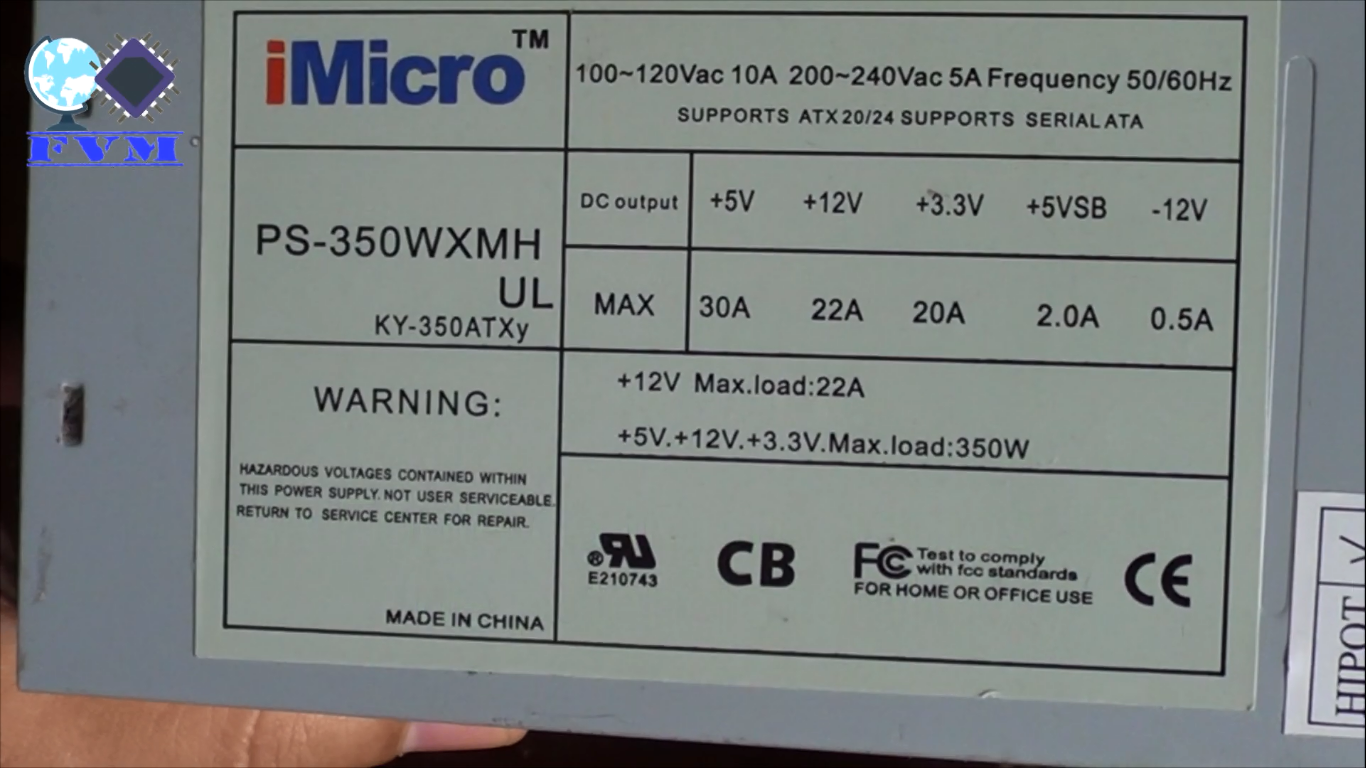
Modifying ATX Power Supply PS-350WXMH to provide 13.6V
Hello, electronics enthusiasts!
Whether you’re an engineer, electronics technician, designer, or hobbyist, an adjustable bench power supply is an indispensable tool in any workspace. The problem? Quality commercial power supplies tend to be expensive and, often, limited in current. But what if I told you that you can build your own robust bench power supply with 6 amperes of current and adjustable voltage from 1.25V to 33V for a fraction of the cost? Keep reading to find out how!
🧐 Why Build Your Own Bench Power Supply?
Professional bench power supplies are essential for testing and developing electronic projects, but the market offers options with two main limitations: low maximum current and high prices. Quality models easily exceed R$500.00, making them inaccessible for many students and enthusiasts.
This is exactly where our project shines! We’ve developed a fantastic module that offers:
- Adjustable voltage: 1.25V to 33V
- Robust current: Up to 6 continuous amperes
- Short-circuit protection
- Thermal protection
- Affordable cost and easy-to-find materials
📝 Required Materials
To build this adjustable bench power supply, we’ll use components that are easy to acquire and affordable. Many of them can be salvaged from old ATX power supplies!

Fig. 2 – Materials needed for the voltage regulator circuit
Component List:
- 2x LM350 ICs – 3A voltage regulators each
- 2x 220Ω Resistors (colors: Red, Red, Brown)
- 1x 5KΩ Potentiometer (preferably multi-turn for greater precision)
- 1x SCHOTTKY S16C45C Barrier Rectifier (16A) or alternatives
- 1x Universal printed circuit board or perfboard
- Heat sink (can be salvaged from an ATX power supply)
- Thermal insulators for ICs and rectifier
💡 Expert Tip: Don’t have a S16C45C rectifier? No problem! You can replace it with two common diodes, connecting anodes to the output of each LM and joining the cathodes to form a single output, as shown in the schematic.
🛠️ Step-by-Step Assembly
Now that we have all the components in hand, let’s start the assembly! Follow each step carefully to ensure the correct and safe operation of your module.
Step 1: Component Preparation
Start by mounting the two LM350 ICs and the SCHOTTKY rectifier on the heat sink. Attention: Don’t forget to use thermal insulators between each component and the heat sink to avoid short circuits!

Fig. 3 – Components mounted on heat sink with thermal insulators
Step 2: Board Assembly
With the components already mounted on the heat sink, fit them onto the printed circuit board. Follow the schematic to make the correct connections. The layout of components can be adapted according to your preference, as long as you maintain the correct connections.
Step 3: Resistor Connection
Solder the two 220Ω resistors as indicated in the schematic. They are essential for the correct operation of the regulator circuit.

Fig. 4 – Schematic Diagram Adjustable Power Supply Module 1.25V to 33V, 6A
Step 4: Potentiometer Installation
The voltage control potentiometer will not be soldered directly to the board. Instead, we recommend installing it remotely on the front panel of your power supply. To facilitate assembly and disassembly, we’ll use a two-pin connector.
💡 Expert Tip: For greater precision in voltage adjustment, consider using a multi-turn potentiometer. They allow for finer adjustments, essential for applications that require specific voltages.
Step 5: Soldering Connections
With all components properly positioned, proceed with soldering all connections. Make sure There are no solder bridges or cold joints that could compromise the circuit’s operation.

Fig. 5 – Soldering all connections on the universal board
Step 6: Remote Potentiometer Connection
Use a cable with a two-pin male connector to connect the potentiometer. This will facilitate the final assembly of your bench power supply, allowing the potentiometer to be installed on the front panel while the regulator module remains inside.

Fig. 6 – Cable with connector for remote potentiometer connection
🏋️♀️ Want More Power? Expand to 12 Amperes!
For those who think 6A is still not enough, we have excellent news! With a simple modification, it’s possible to double the current capacity to an impressive 12 amperes.
The secret? Simply build two identical modules to this one and connect them in parallel. This way, you’ll have an extremely powerful bench power supply, maintaining all protections (short-circuit and thermal) and precise voltage regulation.
⚠️ Safety Warning: When working with high currents like 12A, make sure to use appropriate wires and connectors for this capacity. High currents generate more heat and require greater care with thermal dissipation.
💡 Testing and Validation
Before powering your module, it’s essential to perform some safety checks:
- Confirm that the ICs and rectifier are properly insulated from the heat sink
- Check for short circuits on the board traces
- Test the continuity of the main connections
With everything verified, let’s connect a power supply. In our example, we used a 24V supply. Remember that the maximum output voltage will be limited by the input voltage minus the voltage drop across the components (approximately 1.95V).
Load Test
To validate our module under real conditions, we used as a load a car headlight halogen lamp (55W, 12V). According to Ohm’s Law, this lamp consumes approximately 4.58A (55W ÷ 12V).

Fig. 7 – Load test with 55W halogen lamp
We adjusted the voltage to 13.52V (typical voltage of a car with an alternator running) and connected the load. The result? Excellent stability, with a voltage drop of only 0.4V under a load of 4.58A!

Fig. 8 – Load test with 55W halogen lamp
🔗 Related Content
If you liked this project, you might also be interested in these other articles:
- Adjustable Power Supply 1.25v to 57V, 6 Amps with TIP36C + LM317HV + PCB
- Adjustable Power Supply 1.25v to 33V, 3 Amps with LM350 + PCB
- Stabilized Power Supply 13.8V High Current 10 Amps with PCB
- Adjustable Power Supply 1.2V to 37V High Current 20A with LM317 and TIP35C + PCB
- Switched Power Supply SMPS 13.8V 10A using IR2153 IC and IRF840, with PCB
- Adjustable Power Supply 1.2V to 37V, 6A, Short Circuit Protection with LM317 and TIP36 + PCB
- Symmetrical Adjustable Power Supply 1.25V to 47V 10 Amps with Short Circuit Protection + PCB
📥 Download Files
Direct link: Download Files
🧾 Conclusion
Our 6A adjustable bench power supply project demonstrates that it’s possible to build quality equipment with low cost and high efficiency. The simplicity of the circuit, combined with the robustness of the components used, results in a reliable and versatile power supply for various applications.
Whether for testing prototypes, powering circuits during development or for use in your home laboratory, this adjustable bench power supply will certainly meet your needs with excellent performance and stability.
Detailed Video
For those who would like more details about the assembly process and testing, we’ve prepared a complete video on our YouTube channel. In it, we show each step in detail and share additional tips:
🤔 FAQ: Winget Upgrade Command – Common Questions Answered
The Windows Package Manager, Winget, is a powerful tool, but it’s normal to have questions. Below, we’ve answered the most frequently asked questions to help you master the winget upgrade command.
❓ What is Winget and why should I use it to update apps?🔽
Winget (Windows Package Manager) is an official command-line tool from Microsoft to install, configure, update, and remove software on Windows. Using it to update apps is efficient, fast, and automates the process, avoiding the need to check for updates for each program individually.
❓ What’s the difference between winget upgrade and winget update?🔽
In the context of Winget, the upgrade and update commands are functionally identical. Both are used to update installed packages to their latest versions. The upgrade command is the more common and traditionally used term, but update was added as an alias for greater clarity and consistency with other package managers. You can use either one.
❓ How do I update ALL my apps at once?🔽
To update all apps managed by Winget that have a newer version available, use the command: winget upgrade –all Winget will list the found packages and ask for your confirmation before proceeding with the update for each one.
❓ The winget upgrade –all command asks for confirmation for each app. How can I automate this?🔽
To run the update for all apps without needing confirmation for each one, add the –all flag along with the –accept-package-agreements and –accept-source-agreements flags. The full command is: winget upgrade –all –accept-package-agreements –accept-source-agreements This is useful for scripts and scheduled tasks.
❓ How do I update a specific app instead of all of them?🔽
First, find the exact ID of the app with winget list. Then, use the winget upgrade command followed by the app’s name or ID. For example, to update Visual Studio Code, the command would be: winget upgrade Microsoft.VisualStudioCode
❓ Why are some apps not updated with winget upgrade –all?🔽
This can happen for a few reasons: 1. The app was not installed via Winget. 2. The Winget repository (source) that manages that app may not have information on a newer version. 3. The app might have been installed with an installer that does not support silent or automatic updates. 4. There might be a conflict, or the app is in use.
❓ What does the error ‘No installed package found matching input criteria’ mean?🔽
This error means that Winget could not find any installed application that matches the name or ID you provided. Check if the app name is typed correctly or use winget list to find the exact name as Winget recognizes it.
❓ Is it possible to exclude a specific app from updating when using –all?🔽
Yes. You can use the –exclude flag to ignore one or more apps. For example, to update everything except ‘Microsoft.PowerToys’, the command would be: winget upgrade –all –exclude Microsoft.PowerToys You can list multiple apps by separating them with commas.
❓ How can I see which apps need to be updated before running the upgrade?🔽
Use the command winget upgrade. Without the –all flag, it will list all apps that have available updates but will not update them. It’s a great way to check what will be changed before confirming the action.
❓ Does Winget work in Windows PowerShell and CMD?🔽
Yes, Winget works perfectly in both the Command Prompt (CMD) and Windows PowerShell. It is also compatible with Windows Terminal and the Windows Subsystem for Linux (WSL), allowing you to manage your Windows applications from the Linux environment.
Original article published on FVML (Portuguese) – December 13, 2018
✨ Our Gratitude and Next Steps
We sincerely hope this guide has been useful and enriching for your projects! Thank you for dedicating your time to this content.
Your Feedback is Invaluable:
Have any questions, suggestions, or corrections? Feel free to share them in the comments below! Your contribution helps us refine this content for the entire ElCircuits community.
If you found this guide helpful, spread the knowledge!
🔗 Share This GuideBest regards, The ElCircuits Team ⚡